 Image Generator
How to Edit a Photo With AI Using Image to Image
Learn what to upload, how to write an edit prompt, and when to use up to three reference images for color, lighting, or composition.
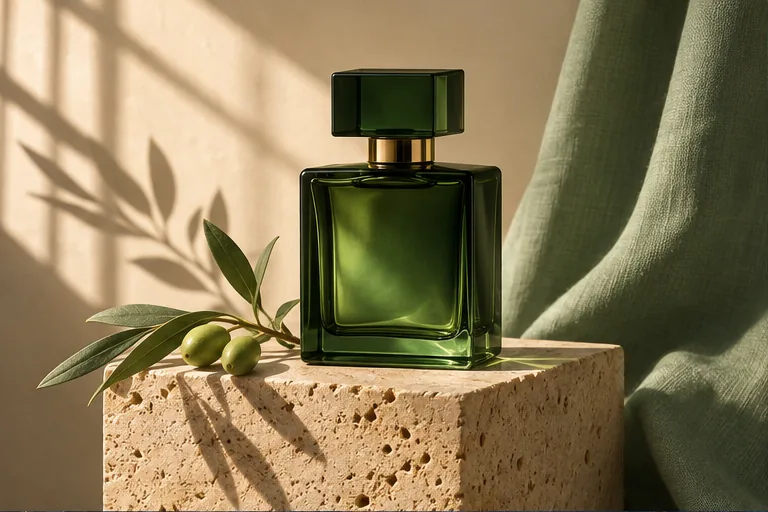
Use Image to Image when you already have a photo and can name what needs to change. A short instruction that explains what to preserve gives you a clearer target for checking the result.
Start with the clearest version of the photo
Choose a JPG, PNG, or WebP up to 15 MB. If you want to keep a face, a product shape, or colors on a label, start with an image where you can see those details. Get permission before uploading a photo of someone else.
In the AI Image Generator, select Image to Image and attach one photo. Describe the edit and the parts you want to preserve. For a product photo, try:
Replace the busy shelves with a warm cream studio wall. Keep the green bottle, cap, front-facing angle, and shadows directly under the bottle.
AI can change small details during a redraw. Compare your result with the original at full size if exact lettering, facial details, or product colors matter.
Use references for separate visual cues
Choose Reference to Image when there’s something in another image you want the AI to borrow. Add up to three images and tell the tool what to take from each, in the same order you attach them.
Keep the bottle shape and front view from reference one. Use the warm cream palette and side lighting from reference two. Place the bottle on a light stone plinth.
Each reference should earn its place. If two images suggest different lighting and only one looks right, use that one. If you only need to change the background of a single photo, the first workflow is enough.
Check the edit before making another one
Look first at the detail you planned to keep, then at the requested change. If you asked for a portrait against a new wall, check the hairline and the edge of the shoulders. If a product photo changed shape, ask to keep its silhouette and scale and limit the next edit to the background. Choose square or landscape before submitting if the finished image needs to fit a listing or banner.
For a fresh image without a source photo, start with the text-to-image prompt guide.